There will be signage along part of the hike we do, but for convenience and safety, I suggest everyone download the necessary hiking maps on their phone. After being downloaded, the maps will be fully accessible, even if there is no cell phone signal available.
I use an application called “Maps.me” on my hikes. It has a free version, and has worked well for me on all my previous Caminos. If you have another application that you would rather use, feel free, but these instructions may not work for other applications.
| Step 1: Load the Maps.me app on your phone Go to your App Store and search for “Maps.me”. Download the app to your phone. Note, Maps.me is free, but when you eventually open it, you’ll be asked if you want to purchase the full version. That is not necessary, must wait for the “X” to appear and close the window. | 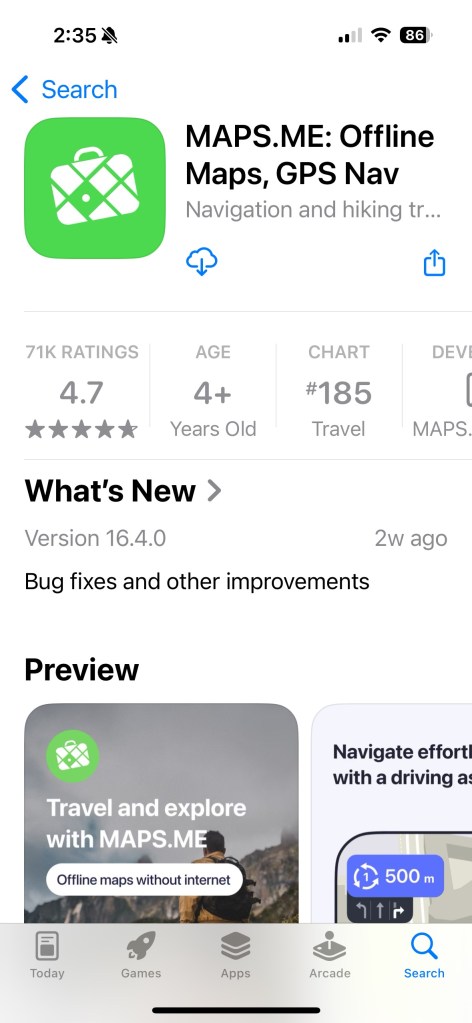 |
| Step 2: Open folder to find map route files I have loaded all the necessary map files into a Google Folder (link here). Clicking on the link will open the folder on the right. |  |
| Step 3: Download map routes to your phone Hold your finger down on the first file. The pop-up menu on the right will appear. Then press “Share” from the menu. | 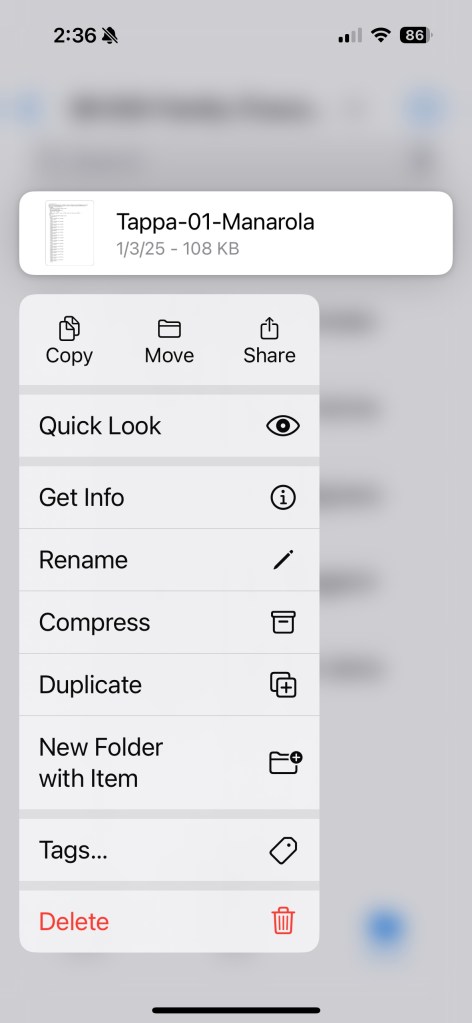 |
| Step 4: Select Maps.me to share file The first time you do this, the Maps.me icon may not be listed. In that case, selected the “More …” icon for a list of more applications. You should find Maps.me in that list. |  |
| Step 5: Confirm load of bookmarks Maps.me will open and a dialog box will be displayed indicating that bookmarks have been loaded. Accep |  |
| Step 6: Repeat Repeat steps 3, 4 and 5 for each of the 8 map route files listed. | |
| Step 7: Go to Map.me to check routes Open the Maps.me app. When you open, it will ask you to download your current area’s map. For me, that’s Detroit area. For you it will be whatever city/region you are located in at the time. If you press “download map” that’s fine, but an alternative is to zoom out by pressing the “-” button on the right side of the screen. (Reverse pinching with your fingers also works to zoom out.) | 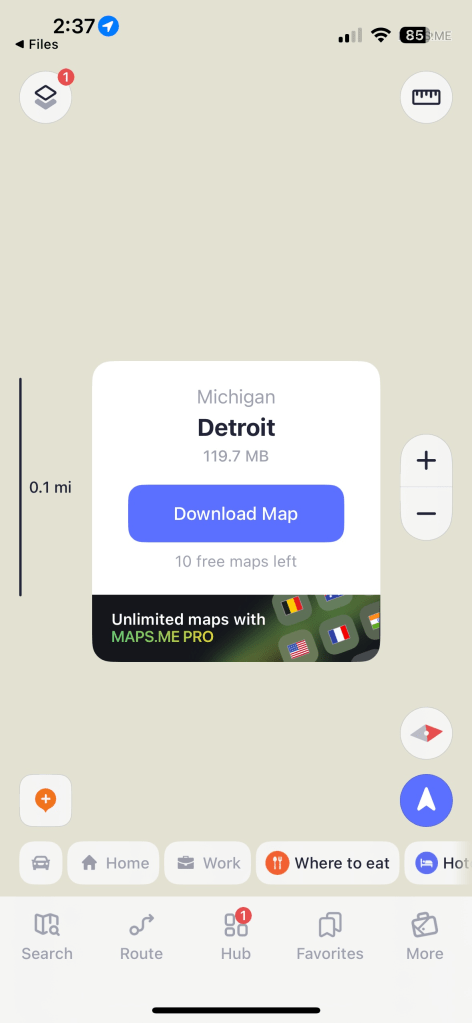 |
| Step 7: Check to see if routes loaded Zoom out on the Maps.me map, then use your finger to scroll over and find Italy. Zoom in or out by pinching your fingers. If the routes are all loaded, you should see two trails like shown on the right. One from La Spezia to Levanto, and one from Lucca to Siena. | 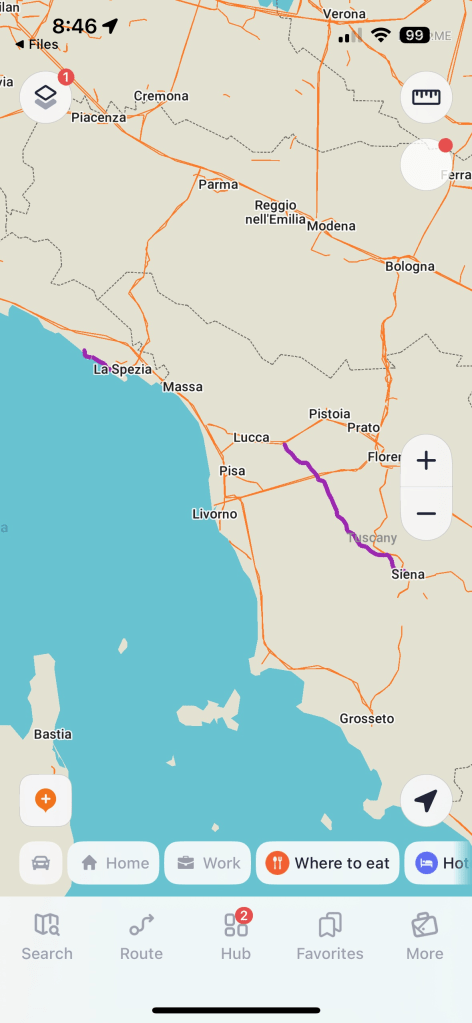 |
| Step 8: Download Liguria map. Scroll over to the western routes near the ocean and zoom in on the trail near the ocean. You will be asked to download “Liguria” map. Press the “download” button and map will download. This will put the map on your phone so you can access it without internet connection. | 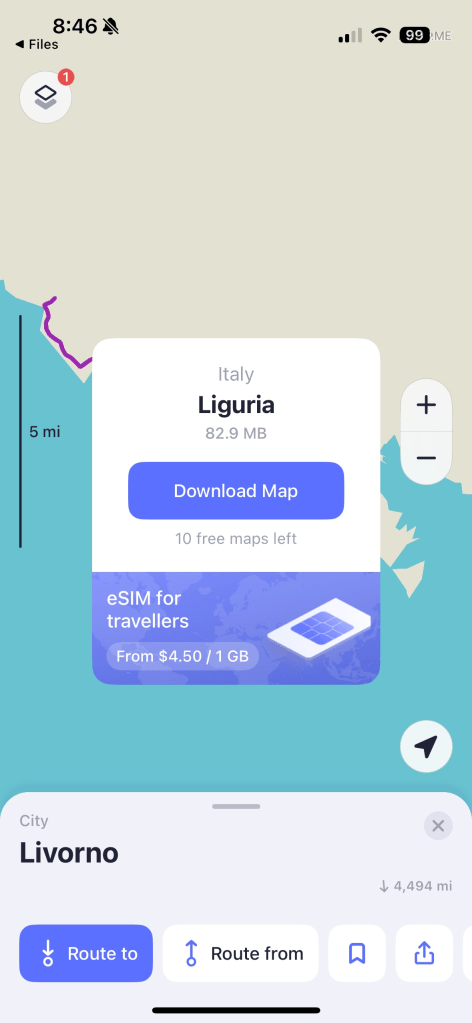 |
| Step 9: Download Tuscany (Province of Massa & Carrara) map. Scroll over to the southeast to find route where it starts up in Lucca. You will be asked to download “Tuscany (Province of Massa & Carrara)” maps Press the “download” button and map will download. This will put the map on your phone so you can access it without internet connection. | 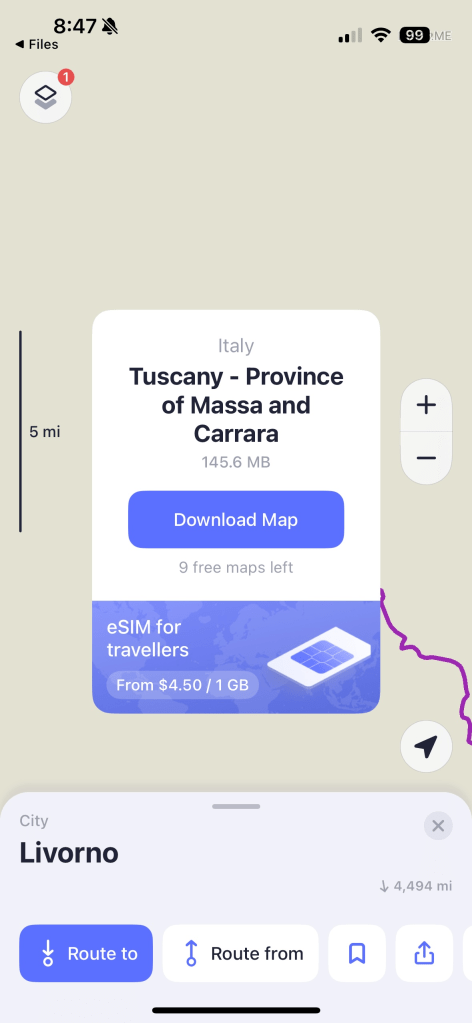 |
| Step 10: Download the Tuscany (Province of Grosseto) map. Continue to scroll southeast toward Siena. You will be asked to download “Tuscany (Province of Grosseto)” maps. Press the “download” button and map will download. This will put the map on your phone so you can access it without internet connection. | 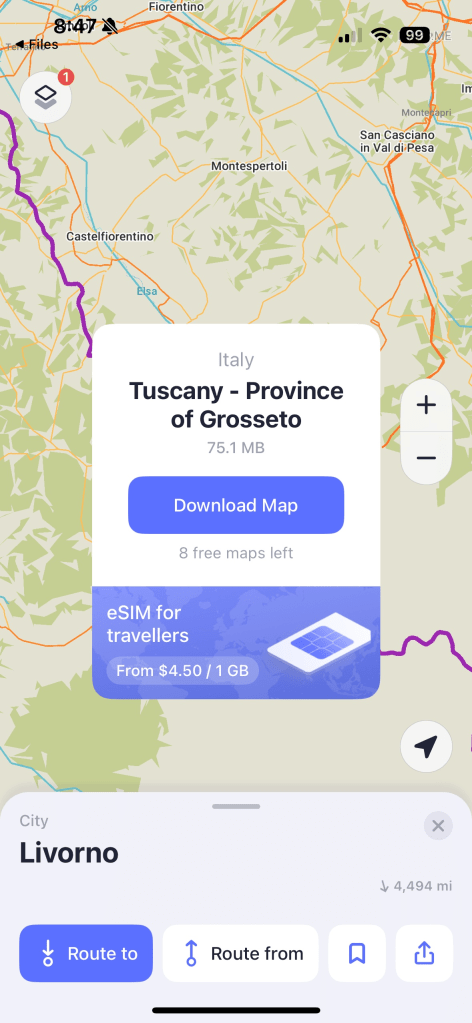 |
That’s it. All the routes and all the maps should be loaded onto your phone.
When you’re on the trail, you can display the map, and the map will show exactly where you are compared to the trail. It’s easy to tell if you’re on the route, or need to adjust.
Important:
When using a mapping application, hold your phone up in front of you so the phone is vertical from the ground. This will ensure the mapping app can accurately tell you which direction you are facing. If not, the directional arrow that is displayed may be incorrect.
 Bill on the Camino